

Theme Parks Data Source
6 Worked Examples
Section titled “6 Worked Examples”The following sections contain some worked examples. These examples are used as the basis for the worked examples in the Dashboards. Access to Ingenuity Hub within your subscription is required for all of these examples as they must be created as a Datasource Template first.
6.3 Theme Parks data source
Section titled “6.3 Theme Parks data source”This data source connects to publicly available data on major theme parks and their queue times.
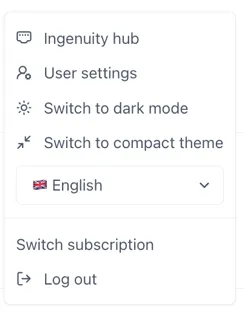
Access Ingenuity Hub by clicking on your user in the bottom left corner and selecting “Ingenuity Hub”
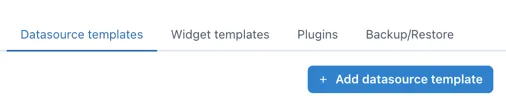
Go to the “Datasource templates” tab and click the [Add datasource template] button:
6.3.1 Enter the metadata
Section titled “6.3.1 Enter the metadata”Enter the following data:
Name: Theme Parks
nameID: theme-parks
Description: Use the docs from the API to put together a useful description for users: https://queue-times.com/pages/about
Search the web for an appropriate logo and upload it.
6.3.2 Configure the source
Section titled “6.3.2 Configure the source”The URL of the API is: https://queue-times.com/parks.json
The request is a standard “GET”, therefore, the first two lines of the datasource are:
"url": "<https://queue-times.com/parks.json>","type": "GET",Configuring the other settings
Section titled “Configuring the other settings”Before we can test the data source we may need to force it to use the Proxy service (i.e. be sent from the back-end server rather than the users machine) if there are any cross site scripting limitiations or users machines do not have access to the data source. Configure the useProxy as follows, and we may as well take the time to also configure the “compatibleWith” parameters.
"useProxy": true,"compatibleWith": [ "table", "multivalue", "value"]6.3.3 Configure the inputs
Section titled “6.3.3 Configure the inputs”The URL does not accept any parameters but we would like to have the option to filter out the list of parks for a given company. So we will present the user with an optional input for the companyId and use a JSON path filter to create a custom output with the list we would like ;
companyId: Optional - The id of the company to filter the list of theme parks
Therefore the inputs section of the data source is configured as follows:
"inputs": [ { "name": "companyId", "label": "Company ID (leave blank to return all)", "description": "If null then all companies and parks will be returned" }],6.3.4 Configuring the outputs
Section titled “6.3.4 Configuring the outputs”The outputs are configured in the output section and as a minimum require a “name” and “path”.
"output": { "paths": []}The path is the json path expression to extract the data from the API response
With the inputs set, we can now use the Test button at the in the Preview section to check the response from the API:
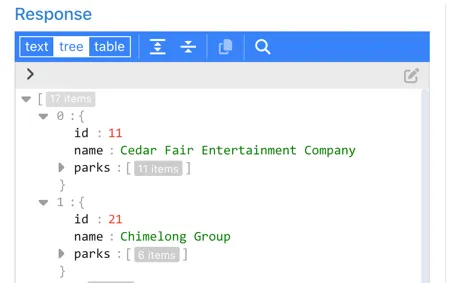
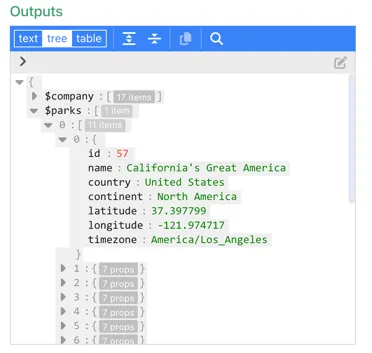
We can see that the list of parks is returned as a sub-document of each company the park details as a further set of sub-documents:
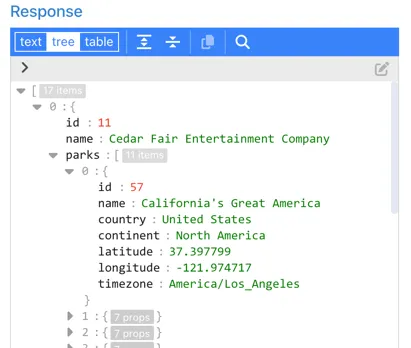
The Company output
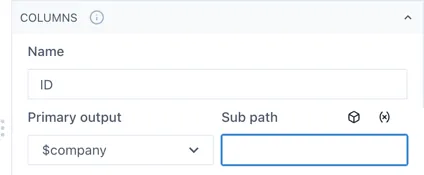
Section titled “The Company output”In this case we are going to return the whole json document for each company and let the user pick the property they want to display as a sub-path. So configure the first output as follows:
"output": { "paths": [ { "name": "$company", "path": "$", "label": "Company [id,name]", "description": "List of all the Companies that have Theme Parks. Has .name and .id properties" }, ]}When a user selects this output in the UI, they will be prompted to enter the sub path (i.e. id or name)
The Parks output
Section titled “The Parks output”For the Parks output we would like to separate the Parks out into a separate field to make it more intuitive for users and so that all the details are available within 1 sub-path. To do this we need to filter the API response to those parks matching the “companyId” in the input, using a JSON path expression that finds all objects in the root array that have an id matching the specified companyId, and then returns the parks property from those objects.
"$[?(@.id==={{companyId}})].parks"-
$ - This represents the root of the JSON document
-
[ ] - Square brackets indicate an array of elements
-
? - signifies the beginning of a filter expression
-
() - round brackets contain the filter expression
-
@ - represents the current object being processed in the filter.
-
@.id==={{companyId}} - elects elements where the id property equals the value of {{companyId}}
-
.parks - After filtering, this selects the parks property from each matched element
The $parks output is therefore configured as follows:
{ "name": "$parks", "path": "$[?(@.id==={{companyId}})].parks", "label": "Parks", "description": "List of all the parks for the selected company"}Now re-check the output by entering a Company ID and you should see something like the following:
Configure the other settings
Section titled “Configure the other settings”The datasource is available on the internet so we do not need to use the back-end proxy. The outputs we have configured are compatible with a table;
"useProxy": false,"compatibleWith": [ "table"]Save the data source template by clicking the Update button at the bottom of the form:
